In this blog post, I will show you how to get user settings from Dynamics 365 using Power Automate flows. This is a useful technique when you want to customize your app or process based on the preferences or roles of different users. For example, you might want to send different email notifications or display different messages depending on the user’s language, timezone, or security role.
User Settings table
The User Settings table is a system entity that stores the personalization settings for each user in Dynamics 365. It has a one-to-one relationship with the System User entity, which means that each user has one and only one user settings record. The user settings table has many fields that reflect the user preferences, such as:
- Language Id: The language that the user selected for Dynamics 365.
- Time Zone Code: The time zone that the user selected for Dynamics 365.
- Currency Id: The currency that the user selected for Dynamics 365.
- DateFormatCode: The date format that the user selected for Dynamics 365.
- NumberFormatCode: The number format that the user selected for Dynamics 365.
- DefaultDashboardId: The default dashboard that the user selected for Dynamics 365.
You can find more info here on official documentation.
How to Get User Settings in Power Automate Flows
The steps are as follows:
- Create a new flow and trigger it on a desired event, such as a button click, a record creation, or a scheduled recurrence.
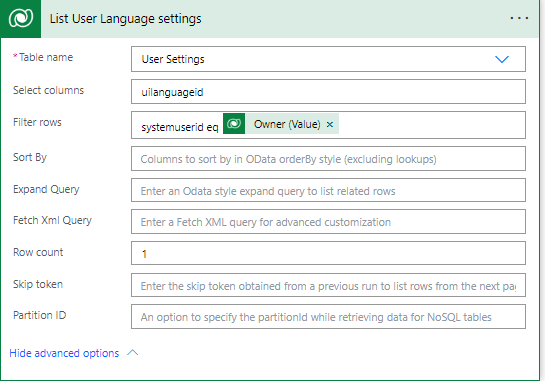
- Add a “List Rows” action from the Microsoft Dataverse connector. This action will allow you to filter records from Dataverse.
- In the “List Rows” action, select the “User Settings” entity from the drop-down list. This entity contains the user settings for each user in Dynamics 365.
- In the “Select columns” field, either leave it blank to retrieve all columns or specify only the columns you want to return.
- In the “Filter rows” field, you need to write a filter to obtain the correct “User Settings“. Like this -> systemuserid eq _UserToSettingsRetrieved_.
- You can now use these fields in your subsequent actions, such as sending an email, creating a document, or updating a record. For example, you can use the “Language Id” field to set the language of the email body, or use the “Currency Id” field to format the currency values.
I hope this blog post was helpful and gave you some insights on how to get user settings from Dynamics 365 using Power Automate. If you have any questions or feedback, please leave a comment below.
 Crm Minds
Leave a comment