In any organization, employees come and go. When someone who owns critical Power Automate flows leaves, it can lead to connection reference issues, especially in the Development environment. This is because the user IDs are often disabled, and others who are not co-owners of the flows cannot update them. This problem can disrupt business processes and workflows, causing delays and inefficiencies.
However, there’s an effective solution to this issue: changing the owners of all such flows at once, rather than doing it individually. This allows you to use your own connection references, update the flows, and maintain business continuity.
Solution Overview
An owner, co-owner, or an admin can change the owner of a solution-aware flow to another user. This ensures that workflows remain operational even after the original owner has left the organization.
Here’s a step-by-step guide to changing the flow owner:
Step-by-Step Guide
- Go to Advanced Find
- Navigate to the Advanced Find option in your environment.
- Look for “Processes” Table
- In the “Look For” dropdown menu, select the “Processes” table.
- Apply Filters
- Set the filter to “Category equals ‘Modern Flow’” to narrow down to relevant flows. Add another filter: “Owner equals ‘the person who currently own the flows’”.
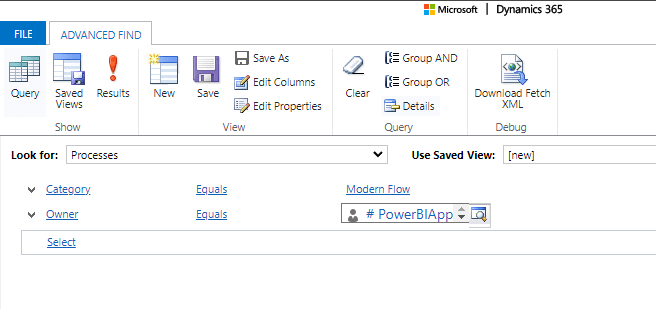
- Select Results
- Click on Results.
- You can also filter the results by Status if needed.
- Assign Processes
- Select all the flows listed under the current user’s name.
- Click on “Assign Processes”.
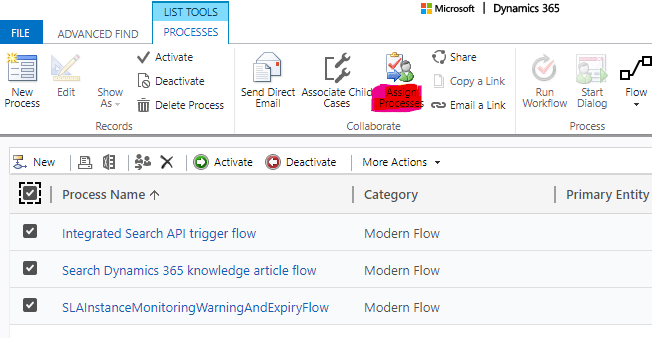
- Change Ownership
- By default, the flows will be assigned to “Me”. Change this to “User or Team”.
- Select the desired user or team and click on “Assign”.
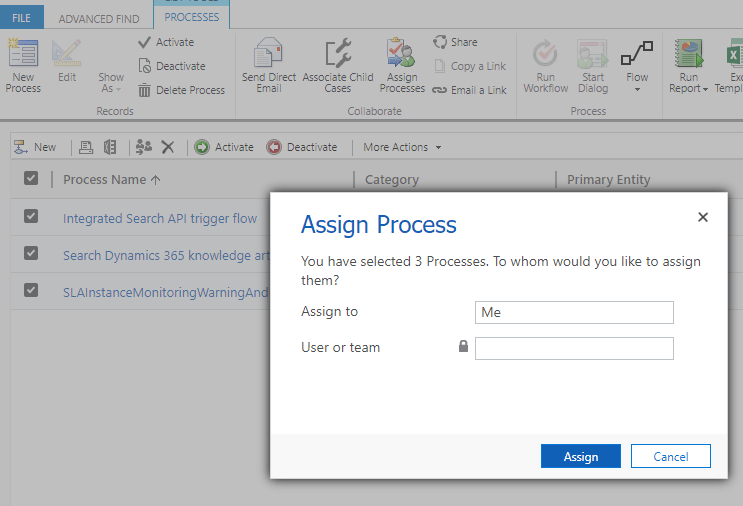
Hope this guide helps you, have a nice day!
You can also check my other posts.
 Crm Minds
Leave a comment