In a well-managed Dynamics 365 application, regularly monitoring the environment capacity and identifying tables with high capacity usage is essential for optimal performance. In a D365 environment, it’s not only tables that consume capacity, various components such as Solutions, Web Resource files, Metadata, and Trace Log history also take up space in the database. For example, if you don’t manage your logs well (e.g., keeping all successful and failed logs indefinitely), you can quickly exhaust your resources. Today, this is what I want to discuss.. some best practices for managing capacity and resources.
Let’s start by listing the key areas you should prioritize:
- Monitoring capacity usage via the Admin Center
- Cleaning up logs and system processes with bulk deletion
- Archiving old data
- Configuring audit history properly
- Deleting unused web resources and plugins
- Removing unused solutions
1. Monitoring Capacity Usage via the Admin Center
The first step to understanding the state of your Dynamics 365 environment is visiting admin.powerplatform.com . Here, you can navigate to the Resources > Capacity section, select your environment, and quickly identify areas that require action.
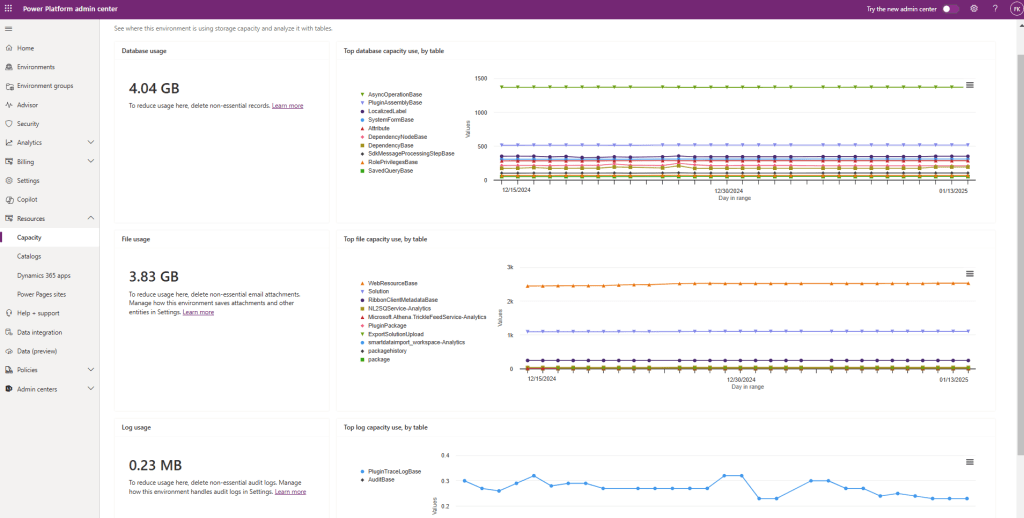
From this page, you’ll see which resources consume the most capacity. Your next steps depend on what you find:
- If tables like Account, Contact, Opportunity, or Incident are using a lot of capacity, you obviously cannot delete them (that would cause data loss 😉). Instead, you can archive them to a managed database with specific rules. For example, archive inactive Incident records older than five years.
- However, if the top resource consumers are tables like AsyncOperationBase, AuditBase, or PluginTraceLogsBase, keep reading!
2. Methods to Free Up Storage for Each Capacity Type
Microsoft provides an excellent guide for this on their documentation site. Rather than repeating it all here, I encourage you to dive into this resource:
👉https://learn.microsoft.com/en-us/power-platform/admin/free-storage-space?wt.mc_id=DX-MVP-5005176
3. Configuring Audit History Properly
Audit History is a useful feature you can enable or disable at the table settings level. When enabled, it tracks the history of the selected fields in your records.
However, if you don’t need to keep the history of a table, disabling this feature will save significant capacity. For tables where history is necessary, make sure to only audit the fields you truly need.
For a detailed guide on managing Audit History, check out Microsoft’s documentation here:
4. Deleting Unused Web Resources and Plugins
Web resources and plugins are essential components of a Dynamics 365 application. However, over time, unused or outdated resources can accumulate, consuming valuable capacity and cluttering your environment. Let’s break this down into actionable steps:
Web Resources
Web resources typically include JavaScript files, HTML files, images, CSS, or XML used to customize forms, ribbons, or dashboards. XML files are generally managed by the CRM itself, so I suspect you would need action on the XML files.
Why you should clean them up:
- Unused web resources not only consume storage but can also slow down the system, especially during solution imports and exports.
- Keeping outdated or redundant resources can lead to confusion for developers and admins managing the environment.
How to identify and delete unused web resources:
- Open the Solution Explorer in the Dynamics 365 admin portal.
- Check if the web resources are being referenced in forms, ribbons, or other components.
- Use tools like XrmToolBox (e.g., Web Resource Manager) to analyze dependencies and identify unused files.
- Export a copy of the unused web resources for backup in case they are needed in the future.
- Navigate to the Web Resources section under Solutions in the maker portal.
Plugins
Plugins are assemblies written in .NET that extend Dynamics 365 functionality by executing custom business logic.
Why you should clean them up:
- Unused plugins still consume processing resources and can complicate debugging and troubleshooting.
- Redundant plugins increase deployment time and create unnecessary dependencies. I am sure in most of the projects there are no unused plugins, but trust me I have seen some projects where zombie plugins exist.🧟
How to clean up plugins:
- Review the plugin registration details using the Plugin Registration Tool.
- Check if the plugin steps and messages are actively being triggered by investigating their filter criterias.
- Remove carefully:
- Use the Plugin Registration Tool to unregister unused plugin steps or assemblies.
- Confirm that no dependencies exist before deletion to avoid breaking the system.
5. Removing Unused Solutions
Solutions in Dynamics 365 are containers for customizations, such as entities, fields, processes, and web resources. Over time, multiple solutions—especially unmanaged ones—can pile up, causing performance and management issues. In your development environment, it is not surprising to see unmanaged solutions from years ago. Just delete them if you are not using them. Managed solutions aren’t our topic, and you shouldn’t delete them unless you have a reason to do so 😉
Why unused solutions are a problem:
- They consume database capacity and make it harder to identify active, relevant customizations.
- They create versioning confusion when multiple solutions include overlapping customizations.
 Crm Minds
Leave a comment