If you have ever been about to rename or delete a column in Dataverse and stopped yourself thinking “wait, which flows might be using this?”, then this post is for you.
I built a small but genuinely useful cloud flow called the Dataverse Attribute Dependency Scanner. You trigger it from a Teams channel message, pass in one or more Dataverse column names, and it tells you which cloud flows in your environment reference those columns. No manual searching through flows one by one, no surprises in production after a column rename.
Let me walk you through the full flow, how it works, and the key techniques it uses.
The Problem It Solves
Dataverse column management is a common pain point for admins and developers. When you need to clean up unused columns, rename fields, or refactor a data model, the first question is always: who is using this?
Solutions table and active flows are tightly coupled. If a cloud flow references a column you just renamed or deleted, it breaks silently or fails at runtime. The only way to find out is to either open every flow manually, or search through exported solution files.
The Dataverse Attribute Dependency Scanner automates that search. It scans the definition of every cloud flow in your environment and checks whether any of them reference the column names you care about.
How You Use It
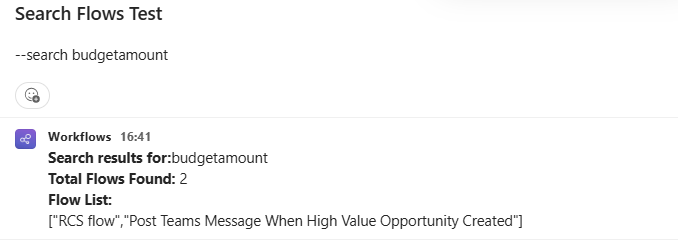
Once the flow is set up and connected to a Teams channel, you use it like this. In the channel, you send a message in this format:
--search budgetamount;cm_myattribute
The --search prefix tells the flow this is a scan request. The column names (or any search terms) are separated by semicolons. The flow parses that message, searches all cloud flows, and replies in the same channel thread with the list of matching flows.
Flow Overview
Here is the full structure at a glance.
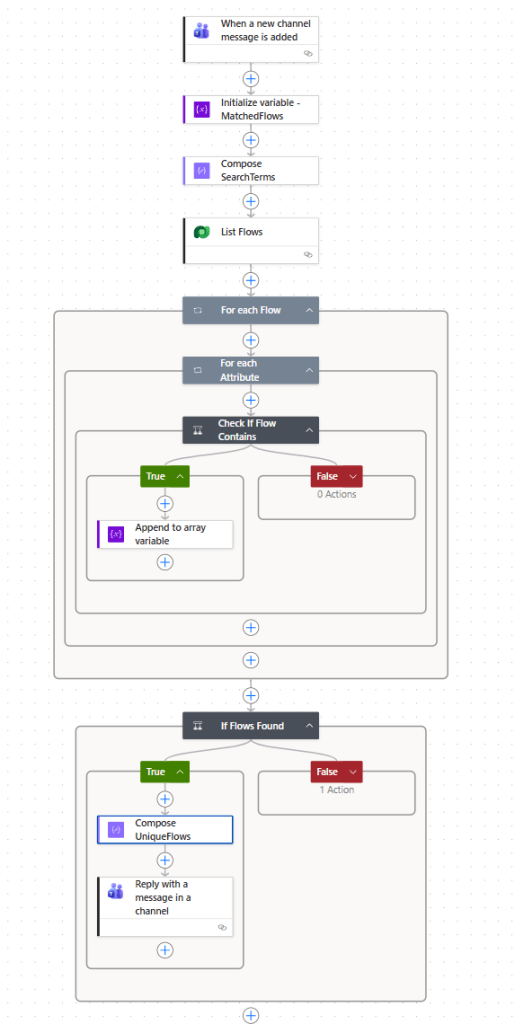
The steps are:
- Trigger: When a new channel message is added
- Initialize variable: MatchedFlows (array)
- Compose SearchTerms
- List Flows (Dataverse)
- For each Flow
- For each Attribute
- Check If Flow Contains
- If Flows Found
- Reply with a message in a channel
Let me go through each part in detail.
Step 1: Teams Trigger
The trigger is the standard Teams connector action “When a new channel message is added”. You configure it to watch a specific team and channel where your admins post scan requests.
Every time a message is posted in that channel, this flow runs. That means you will want to add a condition early in the flow to only proceed when the message starts with --search, which the SearchTerms compose action handles as part of its parsing.
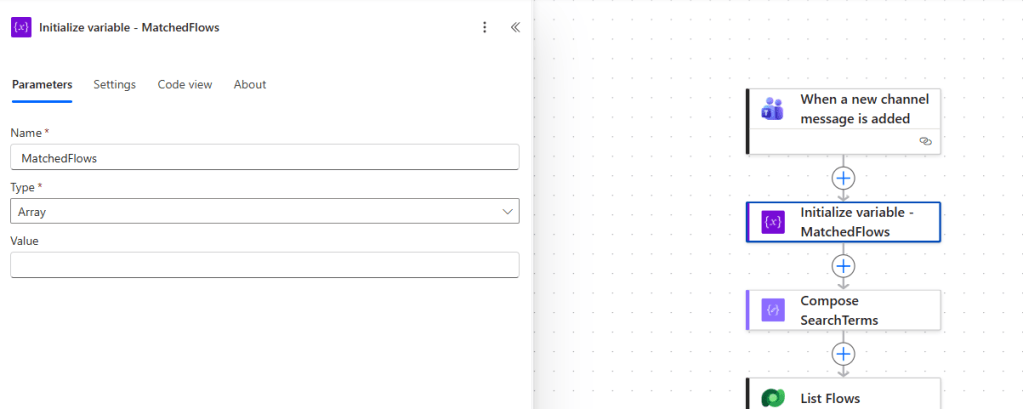
Step 2: Initialize Variable – MatchedFlows
Before the loops start, initialize an array variable called MatchedFlows. This will collect the names of all flows that match your search terms as the loop runs.
Step 3: Compose SearchTerms
This is where the Teams message gets parsed into a usable list of search terms.
The expression in this Compose action does three things in sequence:
- Strips the opening HTML tag
<p>that Teams adds to messages - Strips the closing HTML tag
</p> - Removes the
--searchprefix - Splits the remaining text by
;to produce an array of individual terms
Here is the expression:
split( replace( replace( replace(triggerOutputs()?['body/body/content'], '<p>', ''), '</p>', ''), '--search ', ''),';')
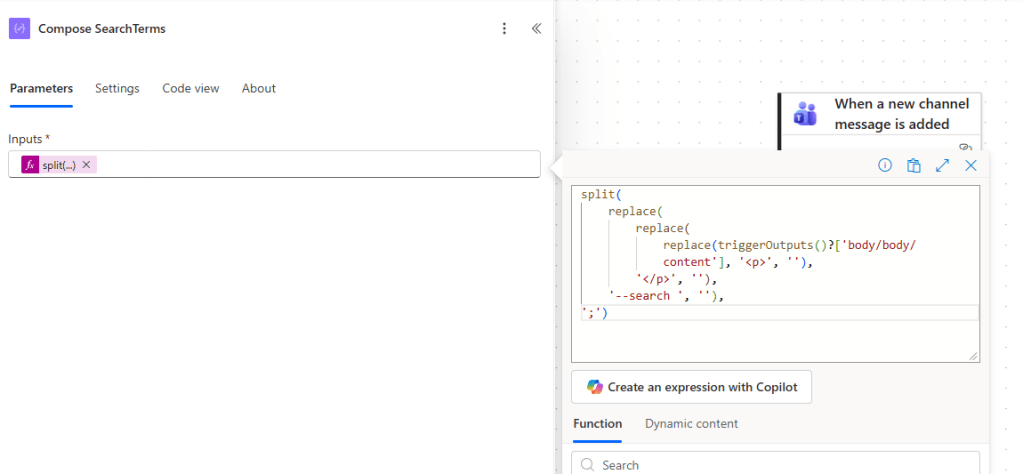
For a message like --search attribute1;attribute2, the output of this Compose is [". That array becomes the input to the inner loop.attribute1", "attribute2"]
Step 4: List Flows via Dataverse
This is the step where most people would not immediately think to look. Cloud flows are stored in Dataverse as records in the workflow table. The category field distinguishes them: category value 5 means cloud flows.
The List Flows action uses the Dataverse connector with a FetchXML query to retrieve all cloud flows and, critically, their clientdata field.
<fetch> <entity name="workflow"> <attribute name="category" /> <attribute name="clientdata" /> <attribute name="createdon" /> <attribute name="description" /> <attribute name="ismanaged" /> <attribute name="name" /> <attribute name="solutionid" /> <attribute name="uniquename" /> <filter type="and"> <condition attribute="category" operator="eq" value="5" /> </filter> </entity></fetch>
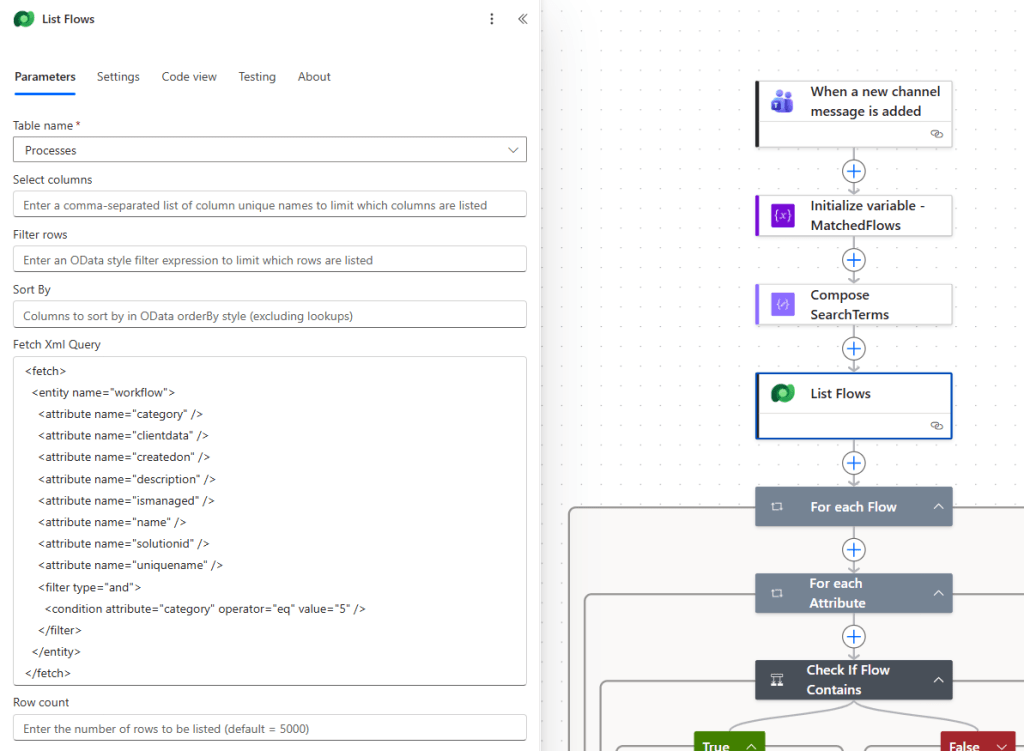
The clientdata field is the key. It stores the entire JSON definition of a cloud flow, including all actions, expressions, trigger configurations, and field references. In other words, if a flow references a Dataverse column anywhere in its definition, that column name will appear in clientdata. That is what we search.
Step 5 and 6: Nested Loops
After listing all flows, the flow enters two nested Apply to each loops.
The outer loop, For each Flow, iterates over every flow record returned by the List Flows action.
Inside that, the inner loop, For each Attribute, iterates over each search term from the SearchTerms compose output.
This gives us a full cross-check: for every flow, for every search term, check if the flow contains that term.
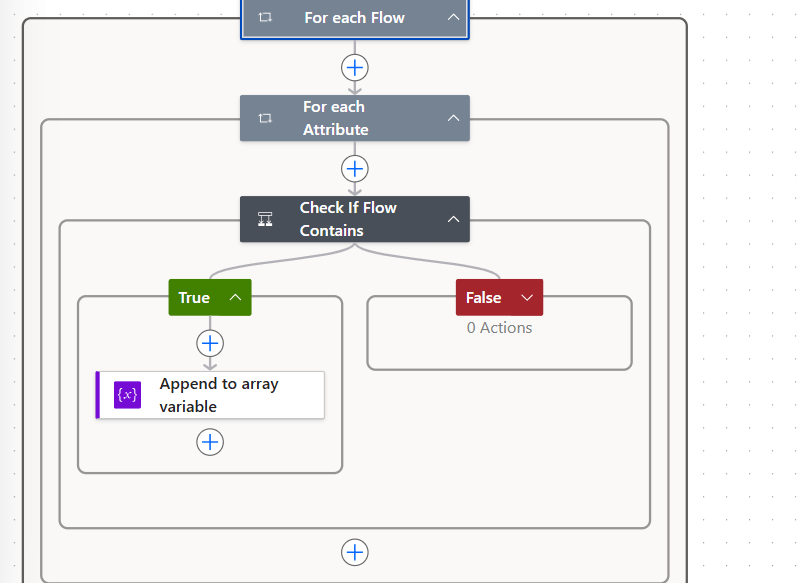
Step 7: Check If Flow Contains
Inside the inner loop is a Condition called Check If Flow Contains. The condition is straightforward:
clientdata contains Current item
clientdata is the dynamic value from the current flow record. Current item is the current search term from the inner loop.
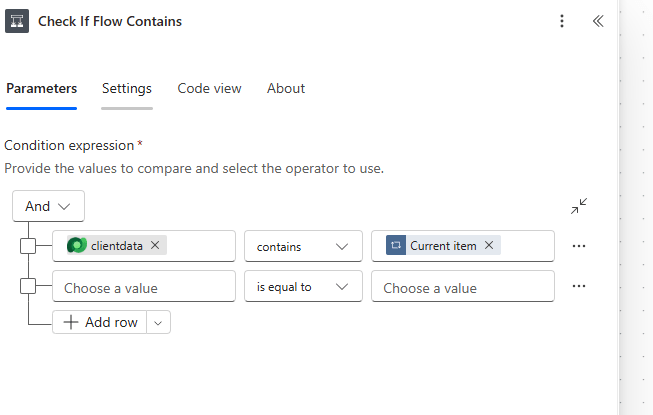
If the condition is true, the True branch runs an Append to array variable action that adds the flow’s name value to the MatchedFlows array.
The False branch has no actions.
Step 8: If Flows Found
After both loops complete, the flow checks whether MatchedFlows has any entries.
The condition expression is:
length(variables('MatchedFlows'))
with the operator is greater than 0.
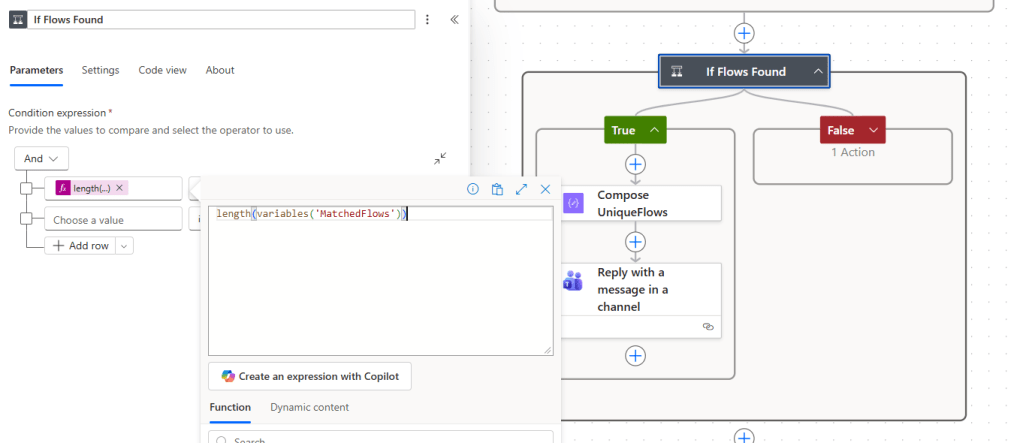
If true, we have matches to report. If false, the False branch sends a “no flows found” reply to the Teams thread.
Step 9: Compose UniqueFlows and Reply
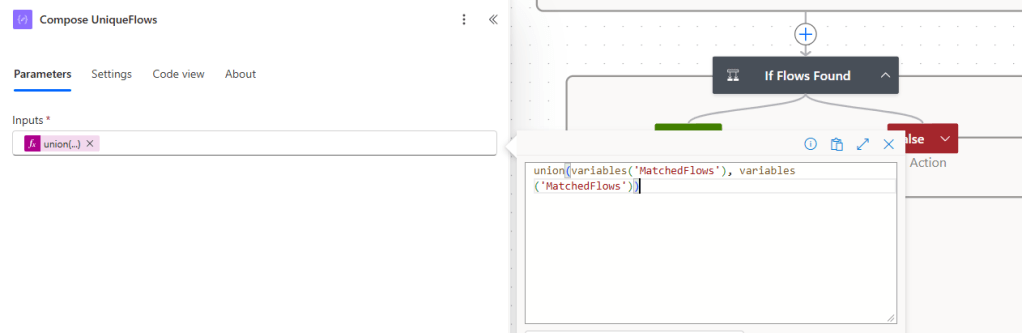
Because a flow could match more than one search term across multiple iterations of the inner loop, MatchedFlows might contain duplicate entries. For example, if a flow contains both attribute1 and attribute2, it gets appended twice.
Before replying, the flow deduplicates using a neat trick with the union() function:
union(variables('MatchedFlows'), variables('MatchedFlows'))
The union() function returns only unique values when given two identical arrays as input. So passing MatchedFlows to itself produces a clean, deduplicated list.
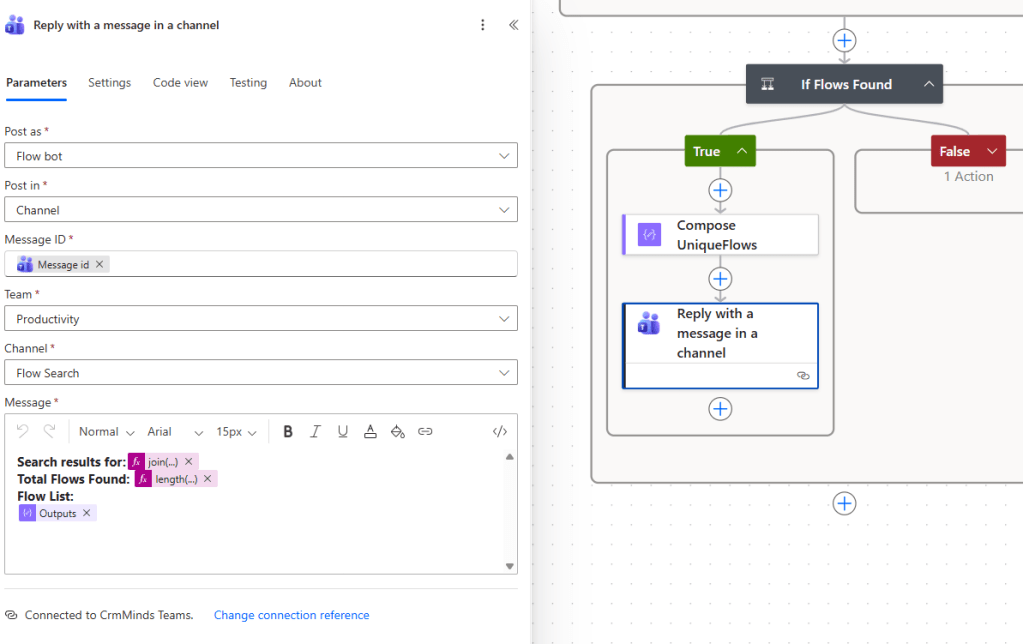
Finally, the Reply with a message in a channel action posts the deduplicated list back into the original Teams thread, so the admin who triggered the scan gets the answer inline.
What is clientdata?
The reason this approach works reliably is that clientdata in the workflow table contains the raw JSON of the flow definition including every expression, every connector reference, every field binding. If you reference new_attribute1 anywhere in a flow, that string appears in clientdata.
This means the scanner is not limited to column names. You can search for any string: a connector name, a URL, a solution prefix, an email address. It is a general-purpose text search across all flow definitions in your environment.
Limitations to Keep in Mind
There are a few things worth noting:
- The scan is a substring search against raw JSON. A search for attribute1 will match any flow that contains the word “attribute1 ” anywhere in its definition, including flow names, descriptions, or connection names. Use specific column names like cm_attribute1 rather than generic words to reduce false positives.
- The flow retrieves up to 5000 records by default (the Dataverse connector default). If you have more than 5000 flows, you will need to implement paging.
- The search is case-sensitive depending on how Dataverse stores
clientdata. Test with lowercase column names to be safe, since FetchXML and column names in flow definitions tend to be lowercase. - The
union()deduplication works per flow name. If you have two flows with the same name, they will appear as one result.
Extending It
A few natural extensions for this tool:
- Add a filter at the trigger to only run when the message starts with
--search, so the flow does not process every Teams message in the channel. - Add the
solutionidoruniquenameto the reply output so admins can immediately identify which solution a matching flow belongs to. - Add an
ismanagedfilter so you can limit the scan to unmanaged flows only, which are the ones you can actually edit.
Wrapping Up
The Dataverse Attribute Dependency Scanner is a practical admin utility that answers a question every Power Platform developer has faced before making a schema change. It uses the workflow table and the clientdata field to perform a text search across all cloud flow definitions, triggered from a simple Teams message.
The key techniques here are worth keeping in your toolkit: querying the workflow table directly with FetchXML, using clientdata for flow definition scanning, nested loops with append-to-array in Power Automate, the union() deduplication pattern, and Teams channel trigger with message parsing.
If you find this useful or build on top of it, I would love to hear about it in the comments below.
Thanks for reading!
 Crm Minds
Leave a comment