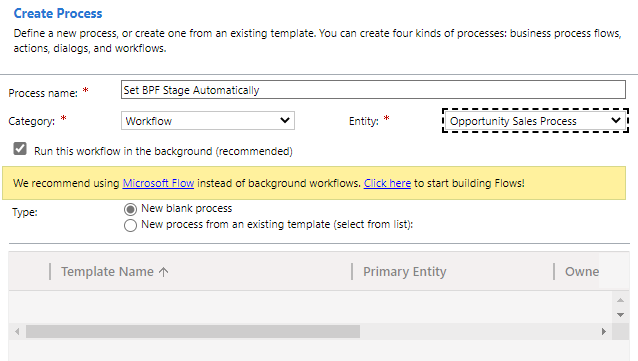
- Create a new Process in Category of Worklfow.
- Choose the entity with the same name as Business Process Flow you want to Set it’s Stage.
- Check the “Run this Workflow in the background” option.
- Check the “Process Changes” option.
- Click “Select” button. Choose your “Record Type” with the Entity Type and choose your attribute for triggering the Stage change.
- Design the steps of your Workflow in any way you want.
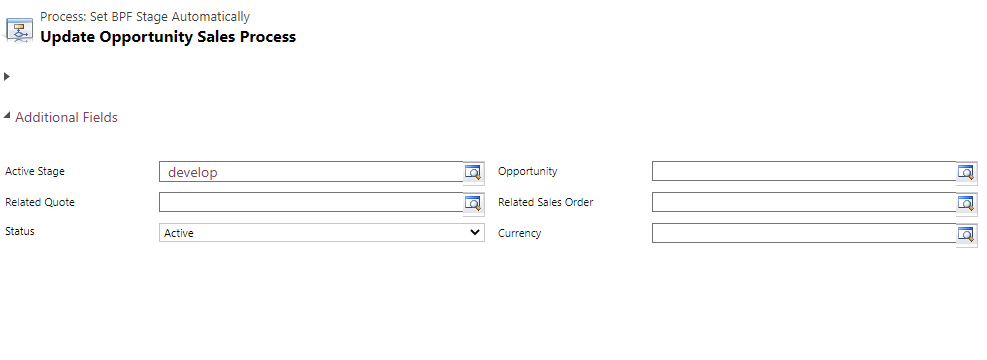
- 🚨 Add “Update Record” to update your BPF stage. The selected entity need to be your BPF entity.
- Click “Set Properties”, select your “Active Stage”. The stage which you want your BPF to jump.
- Save and Activate your workflow.




 Crm Minds
Leave a reply to Jico Cancel reply