Azure Functions are handy for responding to web requests. Let’s break down HTTP triggers, cover security measures, learn how they work, create them step by step, and see where they’re useful.
What is an HTTP Trigger?
Azure Functions’ HTTP trigger helps run serverless functions when someone makes an HTTP request. Useful for making APIs or webhooks.
Authorization Types
Security is crucial. Azure Functions offer three ways to access functions:
- Function: The default, needs a specific key.
- Anonymous: No key needed; anyone can access.
- Admin: Needs a master key.
While keys provide a base security layer, it’s good to explore other ways, especially for production.
Securing Azure Function Endpoints
To enhance security in a production setting, consider these function app-level security options:
- Enable App Service Authentication/Authorization: Utilize Azure Active Directory (AAD) or third-party identity providers for client authentication.
- Azure API Management (APIM): Leverage OAuth, subscription keys, OpenID Connect, or mutual TLS for request authentication.
How Does an HTTP Trigger Work?
Azure Functions follow a streamlined process:
- Function Creation: Define a new function, specifying the HTTP method, trigger, and authorization type.
- Endpoint Generation: Azure generates a unique URL endpoint for the HTTP-triggered function.
- Request Handling: Functions process incoming HTTP requests, executing the defined logic.
- Response: Functions generate an HTTP response returned to the client.
- Stateless & Scalable: Azure Functions are designed to be stateless, ensuring independence for each HTTP request. Depending on the hosting plan, automatic scaling is supported.
Creating an HTTP Trigger in Azure Functions
To create an HTTP-triggered Azure Function, follow these steps:
- Create a Function App: The container for your functions, facilitating organization and scalability.
- Add a New Function: Choose the HTTP trigger template and configure the trigger settings.
- Function Code: Write the necessary code for your function’s logic.
- Testing: Validate your function using tools like cURL, Postman, or direct web browser access.
- Publish to Azure: Once satisfied, deploy your function to your Azure subscription directly from Visual Studio.
Working with Azure Functions in Visual Studio
Developing in Visual Studio offers a more integrated experience:
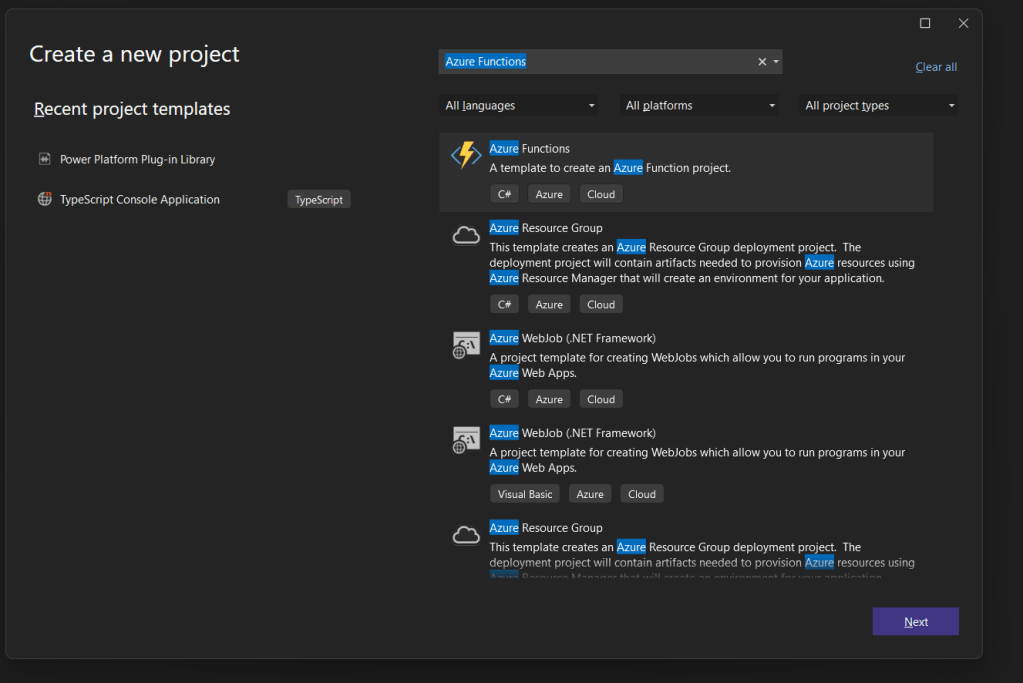
- Create a New Azure Functions Project: Choose the Azure Functions template based on your preferred language.
- Function Configuration: Set HTTP trigger settings such as method and route.
- Function Code: Modify the generated code to implement desired functionality.
- Testing and Debugging: Utilize Visual Studio’s debugging tools for local testing.
- Publish to Azure: Deploy your function to Azure directly from Visual Studio.


Use Cases of HTTP Triggers
Explore the versatility of Azure Functions HTTP triggers in various scenarios:
- Lightweight Web APIs.
- Proofs of concepts.
- Enhancing cloud service capabilities or working around limitations.
In Conclusion
Azure Functions let you run cloud-based functions with simple HTTP requests. Whether you’re using Azure Portal or Visual Studio, HTTP triggers make it easy to bring your scripted functions to life in the cloud. Visual Studio’s perk? You can run functions locally without instantly deploying them to the cloud.


Leave a Reply