Dynamics 365 – Hide/Show Custom Ribbon Button by Ribbon Workbench

If you have a custom ribbon button and you want to hide/show it by a condition, this is what you need to do;

  • Open Ribbon Workbench and navigate to your button
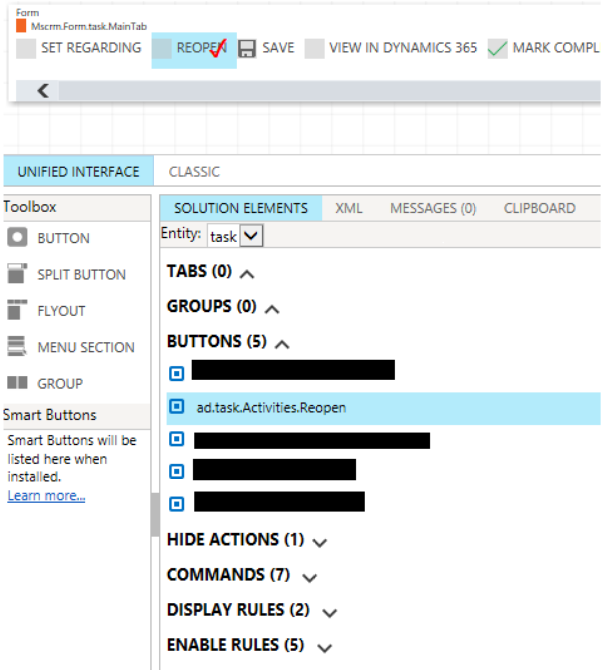
  • Select Command of your button. Under Command properties scroll down to Enable Rules. Click “Add Enable Rule” button. Select “Add New Enable Rule to create your enable rule. Note: Enable rules now changes visibility of your buttons, so you don’t need to add Display Rules for that.
  • Add your conditions, click Publish to publish your changes.

Below are the most common Enable Rules that you can use.

  • Add a ValueRule if you want to change visibility based on a field value. It also works for optionsets, statuscode and statecode fields.
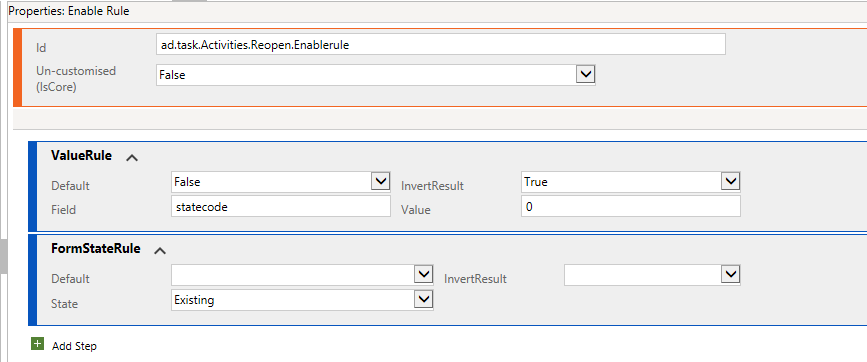
  • Add FormStateRule if you want to change visibility based on form state. For instance, Form Create, Update, ReadOnly states.
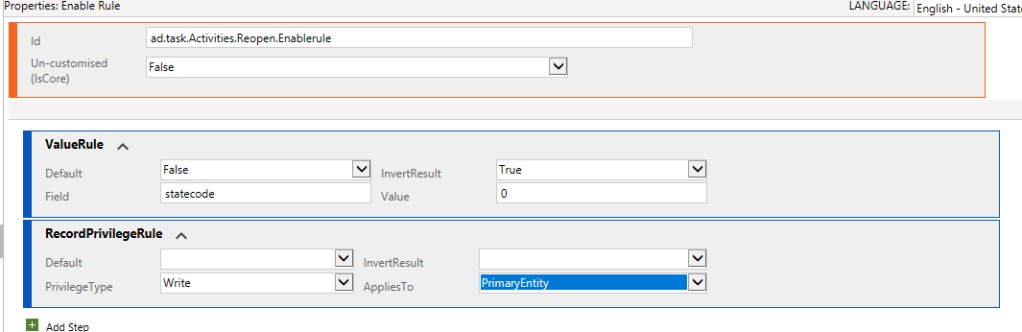
  • Add RecordPrivilegeRule if you want to change visibility based on User’s privilege.
9 responses to “Dynamics 365 – Hide/Show Custom Ribbon Button by Ribbon Workbench”

  1. […] down to Enable Rules. Click “Add Enable Rule” button. Select “Add New Enable Rule“ to … Continue reading Dynamics 365 – Hide/Show Custom Ribbon Button by Ribbon Workbench Read Complete Post and Comments SBX – Two Col […]

  2. DiePic avatar
    DiePic

    on D365 opportunity, I will hide the button “Close as Won”, but using this way seem not working … can you help me to hide “Close as Won” button until opportunity is fully compiled (process flow to close+finished)?

    1. furkankaracan avatar
      furkankaracan

      Hi “Close as Won” is system managed button. I would copy that button and hide the original. Then modify the enable rules of the copied button.

      1. DiePic avatar
        DiePic

        thanks a lot for your suggestion @furkankaracan

  3. sohailrazarizvi avatar
    sohailrazarizvi

    Hi,

    I need to show/hide Delete and Deactivate button on the Home Ribbon (On top of the Active Account View). By selecting an Account Record, Home Ribbon buttons (Delete and Deactivate) check the field value. If true; then show else hide.

  4. sohailrazarizvi avatar

    Hi,
    How can I show/hide Delete and Deactivate buttons on Home Ribbon (on top of Active Accounts View) based on a Field Value. If value is true, show the buttons else hide it.

    1. Furkan Karacan avatar

      Hi. By using ribbon workbench tool follow these steps.
      Copy and paste the original buttons.
      Hide the original buttons.
      For the new buttons add enable rule. In enable rule specify the field value condition.
      Add enable rule to your button’s command. Save and publish.

  5. Dhivya avatar
    Dhivya

    How to make the record to be editable even after clicking “close as won” button, which is currently turning to “Read only”

    1. Furkan Karacan avatar

      why would you update the record if you already closed it? you shouldn’t do that. but if you still want to update it try making the field editable with setDisabled function

Leave a comment